
Inviting Users to Your Organisation
Inviting new users to your organisation’s Genira account can only be done by a user with an Admin or Owner role.
💡 Tip:
For a detailed description of available roles, see Understanding Roles in Genira.
📌 Steps to Invite a User
1. Log in to Genira
Sign in with an account that has Admin or Owner permissions.
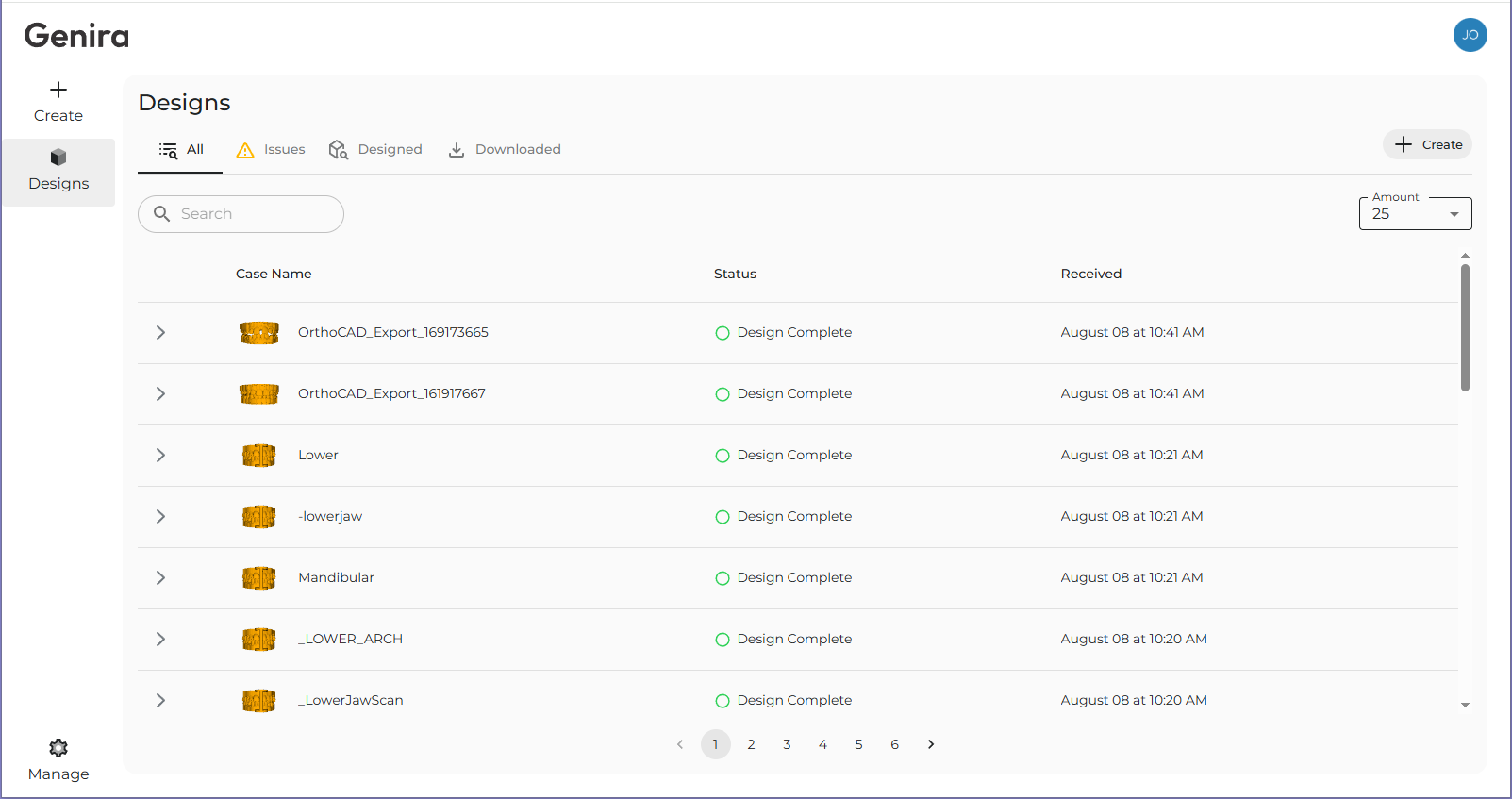
2. Open the Manage View
Click the Manage icon in the bottom-left corner of the left sidebar.
3. Go to the Users Tab
In the Manage view, select the Users tab.

4. Click “Add User”

5. Fill in the Invite Users Form
In the Invite Users dialog:
- Enter email addresses for the users you want to invite.
-
Separate multiple addresses with commas.
Select the role you want to assign.
- This role will be applied to all users in the list.
- Only an Owner can invite users as Admins.
-

6. Send the Invitations
When ready, click Invite.
📩 After Sending the Invitation
-
Invited users will appear in your Users list.
Each invited user will receive:
- An invitation email to join the organisation.
-
A welcome email.
They must:
- Click the link in the invitation email to verify their address.
- Accept the Terms and Conditions when logging in for the first time.
🛠 Troubleshooting
If there’s an error in the email list, the border around the address box will turn red when you click Invite.
Common issues include:
-
❌ Invalid email format.
❌ Missing commas between addresses.
❌ .
- A “Server Error” pop-up will appear but resolves automatically.
Less common issue:
The email address is already linked to a user in another Genira organisation.
- This also shows the “Server Error” pop-up, but the user won’t appear in your account.
- The user must first remove themselves from the other organisation before they can be enrolled with the same email.
✅ Workaround: Plus Addressing
Use plus addressing (also called subaddressing or address tags) to make the email unique for Genira.
Example:
Original: john@company.com
Plus address: john+genira@company.com
Emails will still go to john@company.com, but the user logs in with john+genira@company.com.