
Creating/Editing/Deleting Templates
Templates in Genira allow you to save preferences for specific model features so you can quickly reuse them for future models.
📋 Template Features
Each template can include the following settings:
- Attachments
Components that connect the upper and lower models. Only added if both an upper and a lower model are part of the case.
-
Text
Text is added to the base of the model(s) unless pillars are added — in that case, text is added to the pillars instead.
Limitations:
-
Maximum 18 characters. Longer text is shortened, e.g.:
213235153213978974525235 → 21323515 .. 74525235 - Only Numeric, English and supported special English characters (â, ê, î, ô, û) are allowed.
- Text style can be Embossed or Engraved.
-
-
Solid/Hollow Model
Indicates whether the base is solid or hollow.
🔑 Permissions
Your organisation’s Templates can be managed only by a user with an Admin or Owner role.
💡 Tip:
For more details on roles, see Understanding Roles in Genira.
🖥 Navigating to Templates
-
In the left sidebar, click Manage at the bottom.
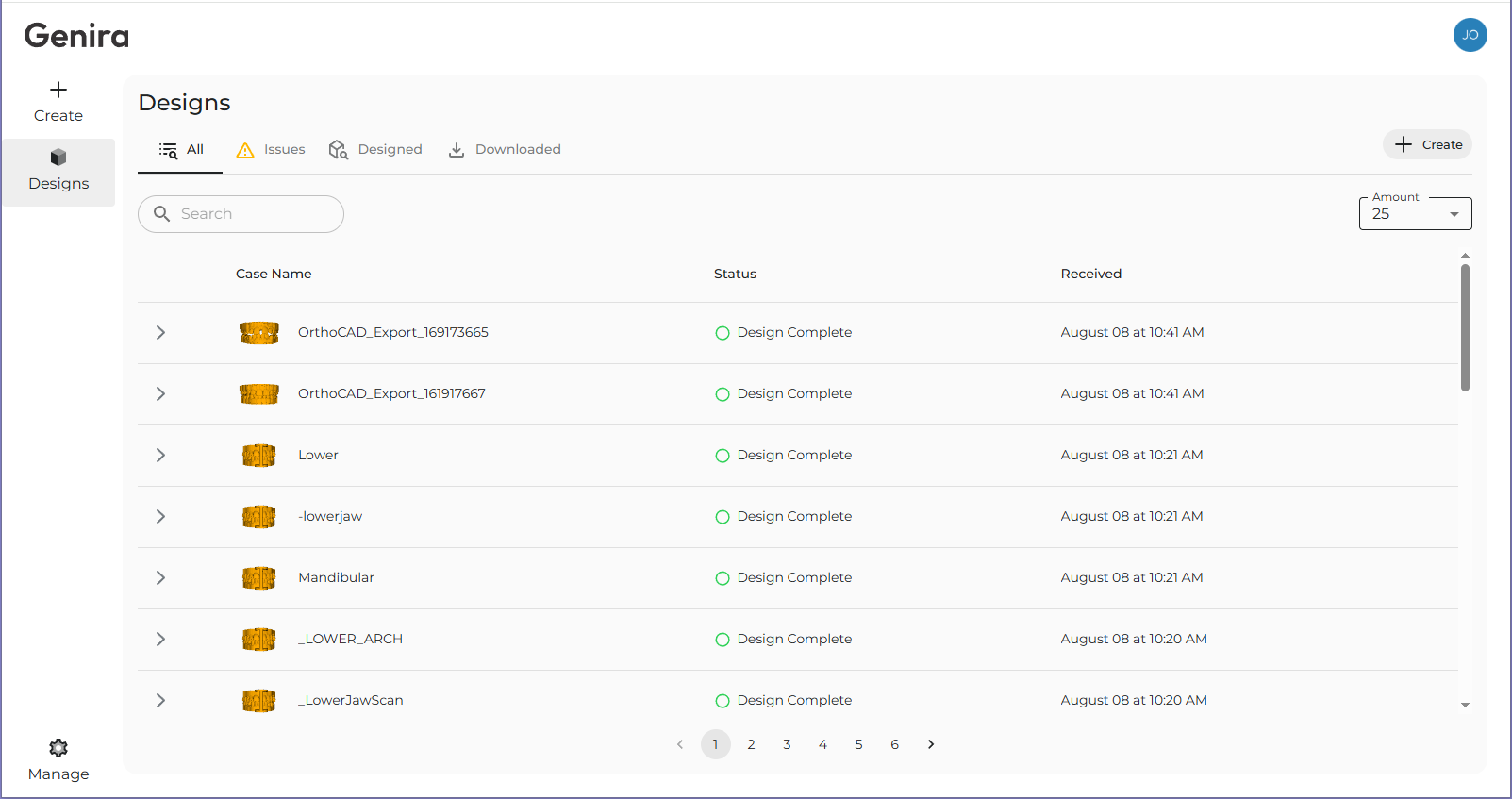
Home Page - In the Manage view, ensure the Template tab is selected.

-
➕ Creating a New Template
- Click the Create button at the top right.
-
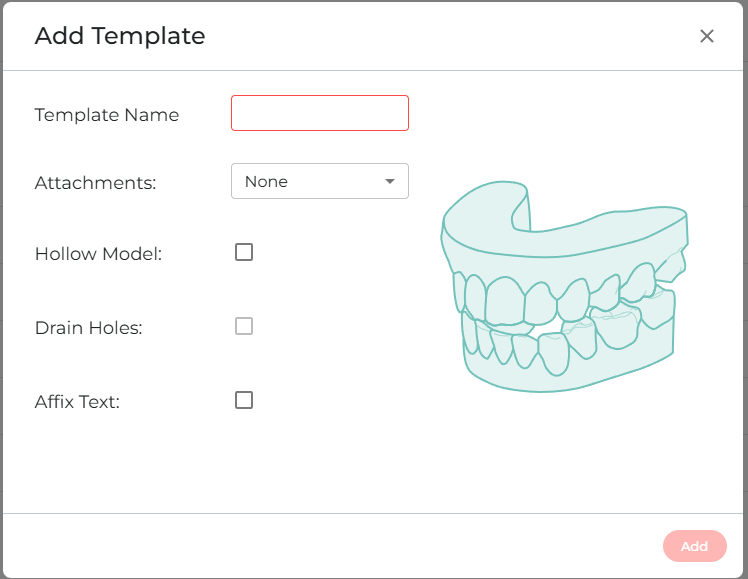
Add Template Dialogue
- In the Add Template dialog:
- Select the desired features (pillars, text, text style, solid/hollow).
- Give the template a name.
- Click Add to save the template. The dialog closes, and the new template appears in the Template list.
- Click the X to close the dialog without saving.
✏️ Editing a Template
- Click the row for the template you want to edit.
-
Click the Edit icon to open the Edit Template dialog.
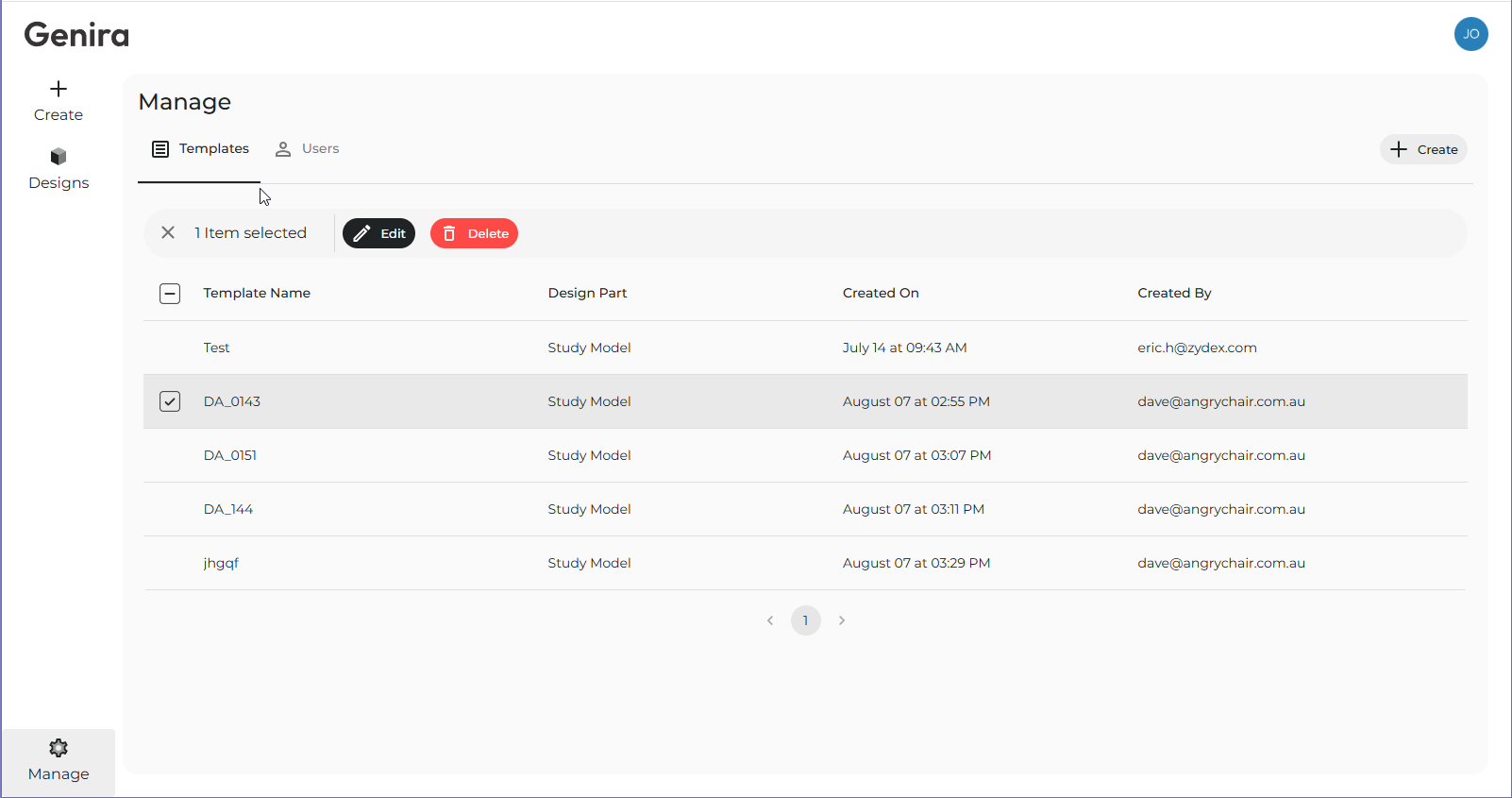
Edit/Delete Menu - Make your changes.
- Click Update to save your changes.
- Changes apply to all future models created using this template.
- Models already in progress are not affected.
- Click the X to close without saving.
⚠️ You can also delete the template while in the Edit dialog by clicking Delete. You will be prompted to confirm before deletion.
🗑 Deleting Templates
You can delete one or more templates:
Deleting a Single Template
- Click the row for the template you want to delete.
- Select the red Delete option from the Edit/Delete Menu.
-
Confirm the deletion in the dialog.
Note: Deletion is permanent and cannot be undone.
Deleting Multiple Templates
- Select multiple templates using one of the following methods:
- Shift + Click to select a range.
- Ctrl + Click (Windows) / Cmd + Click (Mac) to select individual templates.
- Tick the checkboxes at the left of each template row.
-
Click the red Delete button.
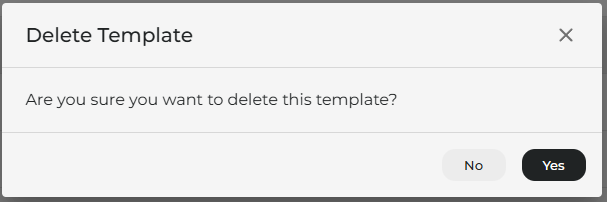
Confirm Delete - Confirm the deletion in the dialog.
- Note: Deletion is permanent and cannot be undone.
🧾 Summary
- Templates let you store and re-use model settings.
- Only Admin or Owner roles can manage templates.
- You can create, edit, and delete templates from the Template tab in the Manage view.
- Deleted templates cannot be recovered.