
Clean up an intraoral scan with MeshLab
The Genira software attempts to clean up the scans presented to it automatically but doesn't always succeed. Below is one suggested way to clean up scans that fail.
MeshLab is a program for processing and editing 3D triangular meshes. It provides a set of tools for editing, cleaning, healing, inspecting, rendering, texturing and converting meshes. It can be downloaded from: MeshLab
- Drag and drop your scan into MeshLab.

-
Use the mouse to move the camera and zoom closer to the region you want to remove.
Click + drag: rotate the camera
Click mouse wheel + drag: pan the camera
Scroll mouse wheel: zoom in and out

- Select the “Select Faces in a rectangular region” tool from the toolbar. Note that the camera cannot be moved whilst this mode is selected. To exit out of the selection mode, click the same icon again.

- Click and drag to select a rectangular section of the scan. The selection will be coloured red. You can then press the Delete key on your keyboard to delete the selected section. If you make a rectangular selection and want to deselect it, you can do this with the D key.

-
You can then move the camera to a different section of the scan and continue to delete until the scan has been cleaned.
Important note: It’s worth mentioning here that MeshLab has no undo button. The best way to imitate this functionality is to regularly save the mesh as you go. That way if something goes wrong, you can just load it from the last saved version.
-
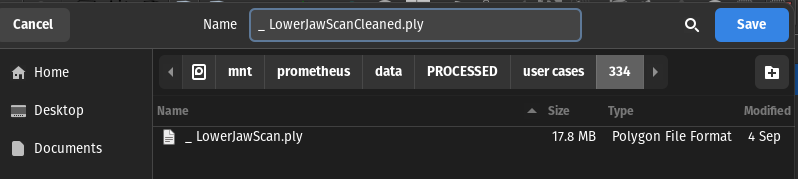
Once you’re happy with the result, you can save the cleaned scan by going to File > Export Mesh As…. It’s best to give the scan a new name so the original is still preserved.
A window for Saving Options will then pop up. You can leave all the settings as they are and just click on OK.
