
Understanding the Credit History Report
The Credit History Report in Genira provides a detailed, downloadable summary of how your organisation’s credits have been used and ver time.
Accessing the Credit History Report
Only users with Owner or Admin permissions can view the Credit History Report.
To access it:
-
Click the Credits icon or the User icon in the top-right corner of the Genira interface,
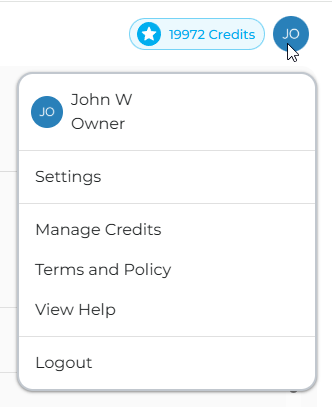
- Select Manage Credits from the dropdown menu.
-
A new tab will open showing the Credit Management options.
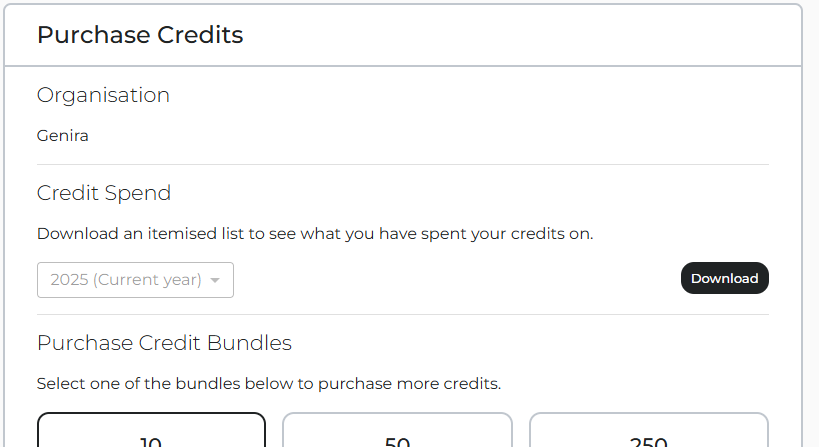
Credit Management Options - In the Credit Spend section, choose the time period you want the report for.
- Click Download and follow your browser’s prompts to save the CSV file.
What’s in the Report?
The report is a CSV file that includes the following columns:
| Column | Description |
|---|---|
| Case Name | Name of the case used in Genira (may not be unique). |
| Case ID | Unique identifier for the case in Genira. |
| User's Name | Name of the user who performed the action (may not be unique). |
| Email of the user who performed the action (guaranteed to be unique). | |
| Kind | Type of credit transaction (see below for definitions). |
| Amount | Number of credits affected by the action. |
| Created At | Timestamp of the action. |
| Description | Description of the credit-related action. |
Types of Credit Transactions (Kind column)
There are four types of actions that can appear in the Kind column:
- Grant – Credits are added to the account (e.g., when purchasing a credit pack).
- Hold – Credits are temporarily reserved when a model generation is requested. These credits are not available for other uses unless released.
- Debit – Held credits are permanently consumed when a model is downloaded (this happens only once, on the first download).
- Release – Held credits are returned to the account if the model is rejected or not used.
See the article Understanding Credit Usage Workflow to get a better understanding of when credits are consumed and refunded.